


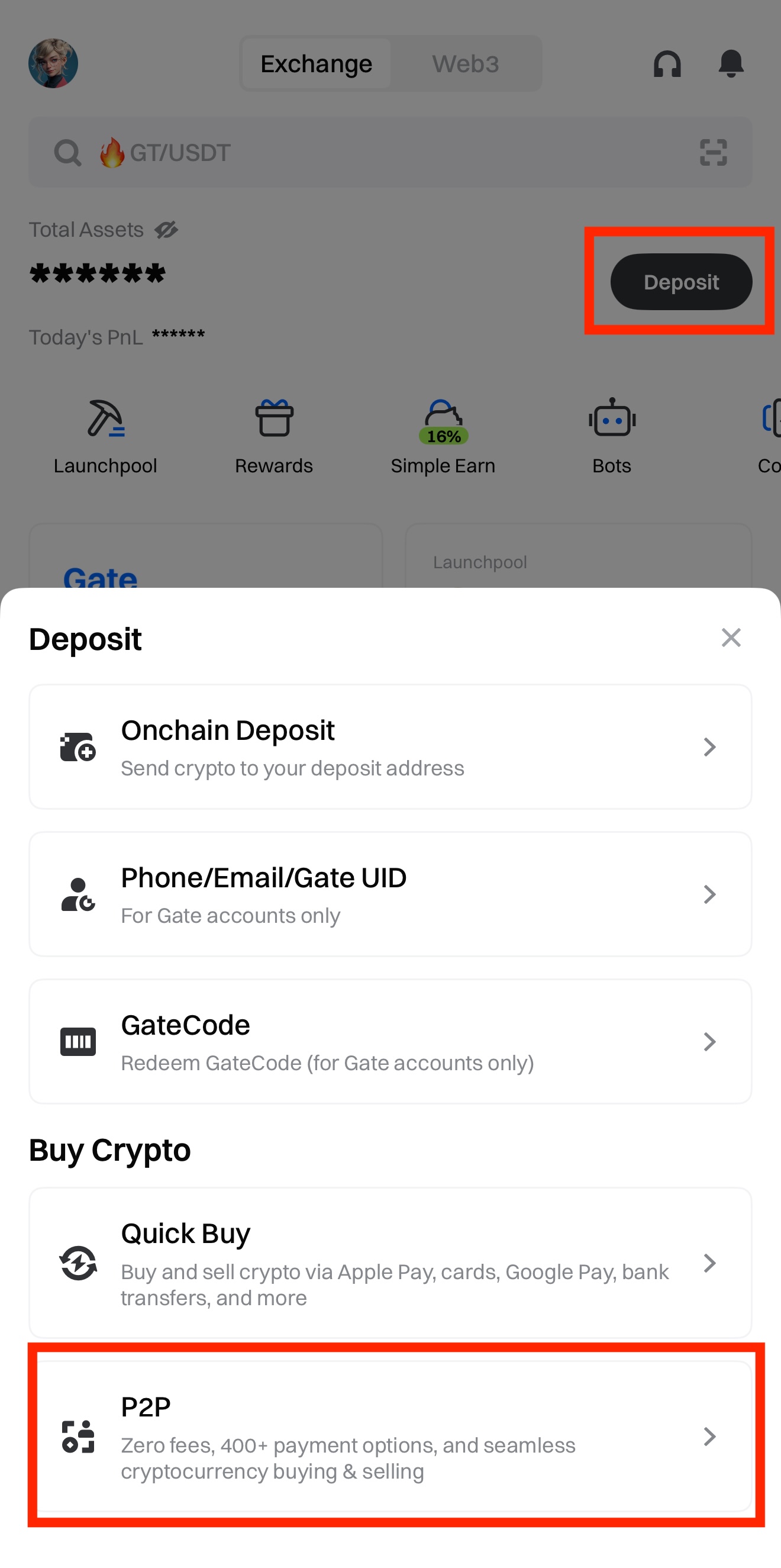
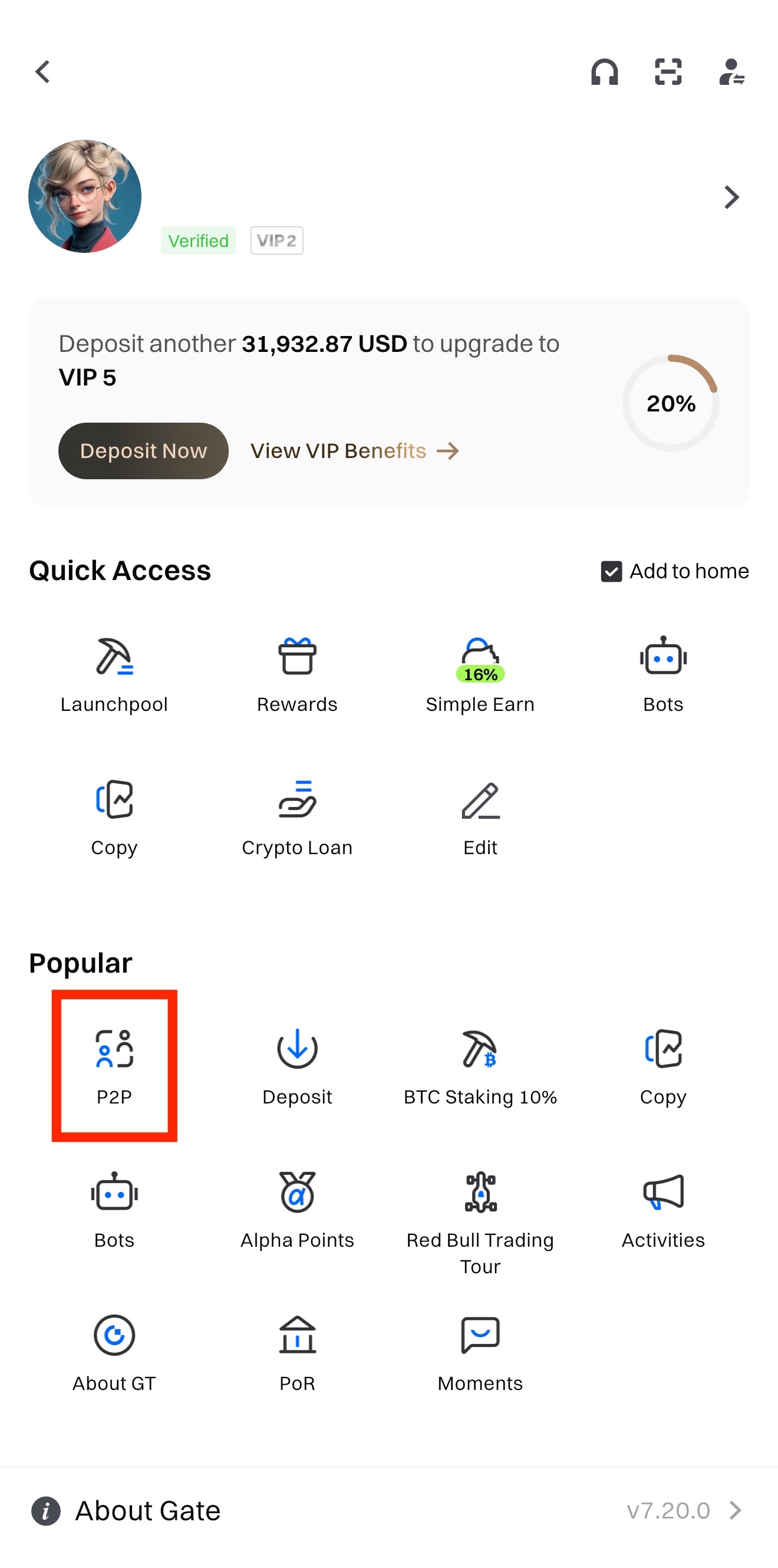
Step 1: Open the Gate app. On the homepage, tap [Deposit] - [P2P], or go to [Profile] - [P2P].
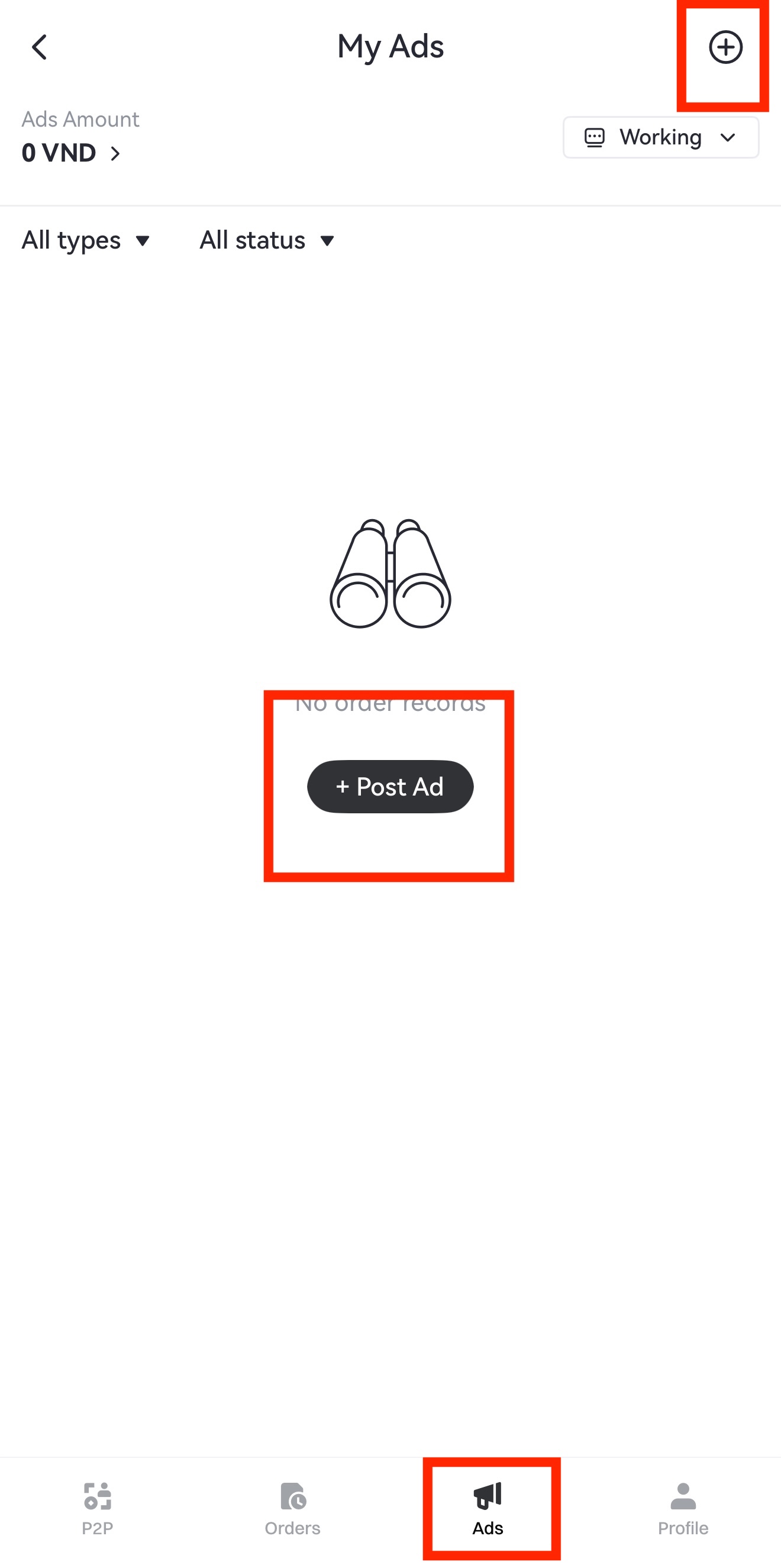
 **Step 2:** On the P2P trading page, tap [Ads] at the bottom, then tap [Post Ad] in the middle of the page or the [+] icon in the upper-right corner.
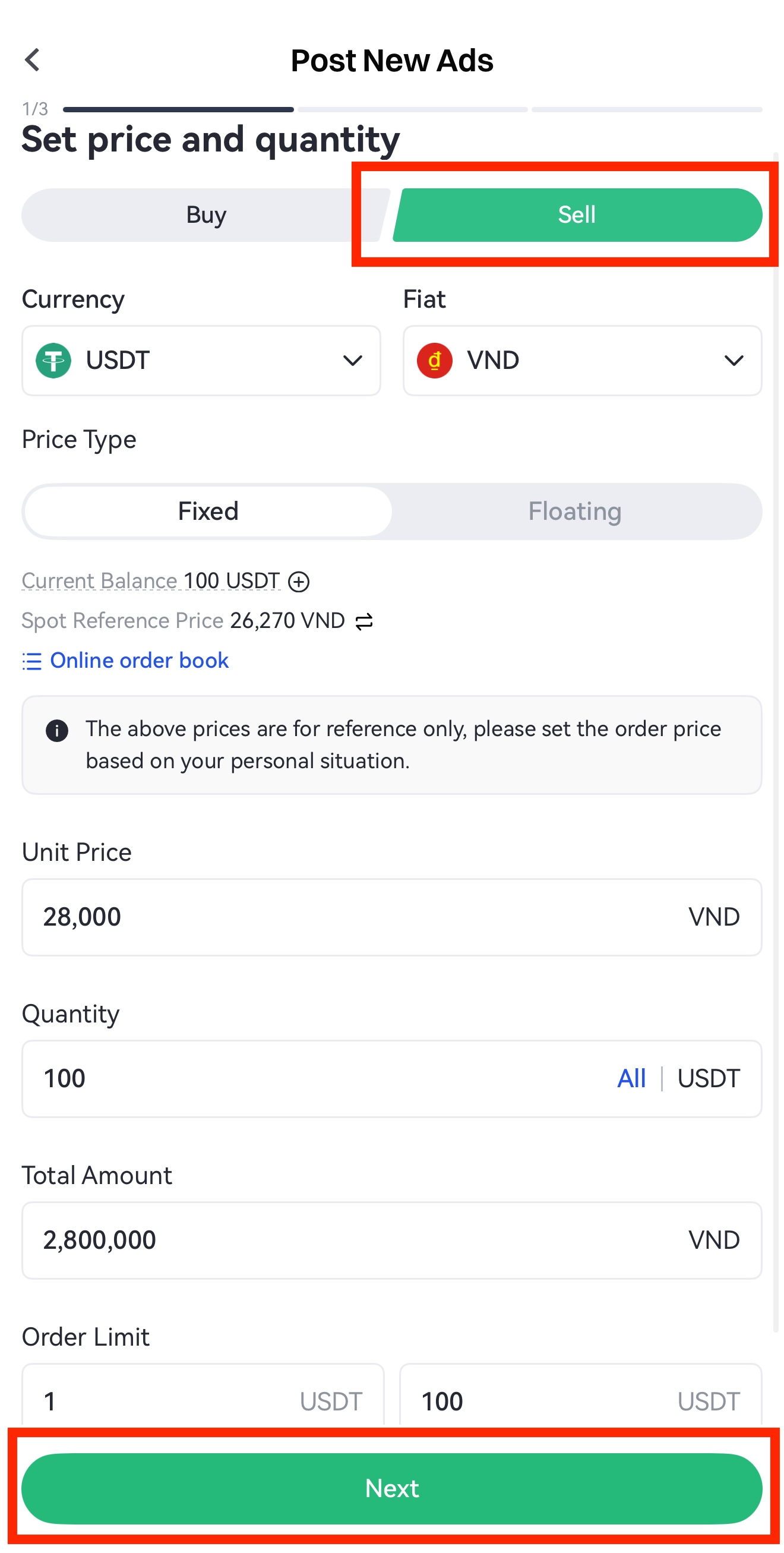
Here we take [Sell] as an example.
On the ad posting page, if [Buy] is displayed, switch to [Sell] in the upper-right corner.
At the top of the page, use the drop-down menu to select the trading pair. Then choose either a fixed price or a floating price and fill in the required information (price, quantity, amount, minimum and maximum order limits). You may also add optional trading terms and an auto-reply message.
Additionally, you can set trading restrictions (account level, registration days, or whether to trade with other advertisers). Eligible advertisers can also enable [Hide Info/View Records].
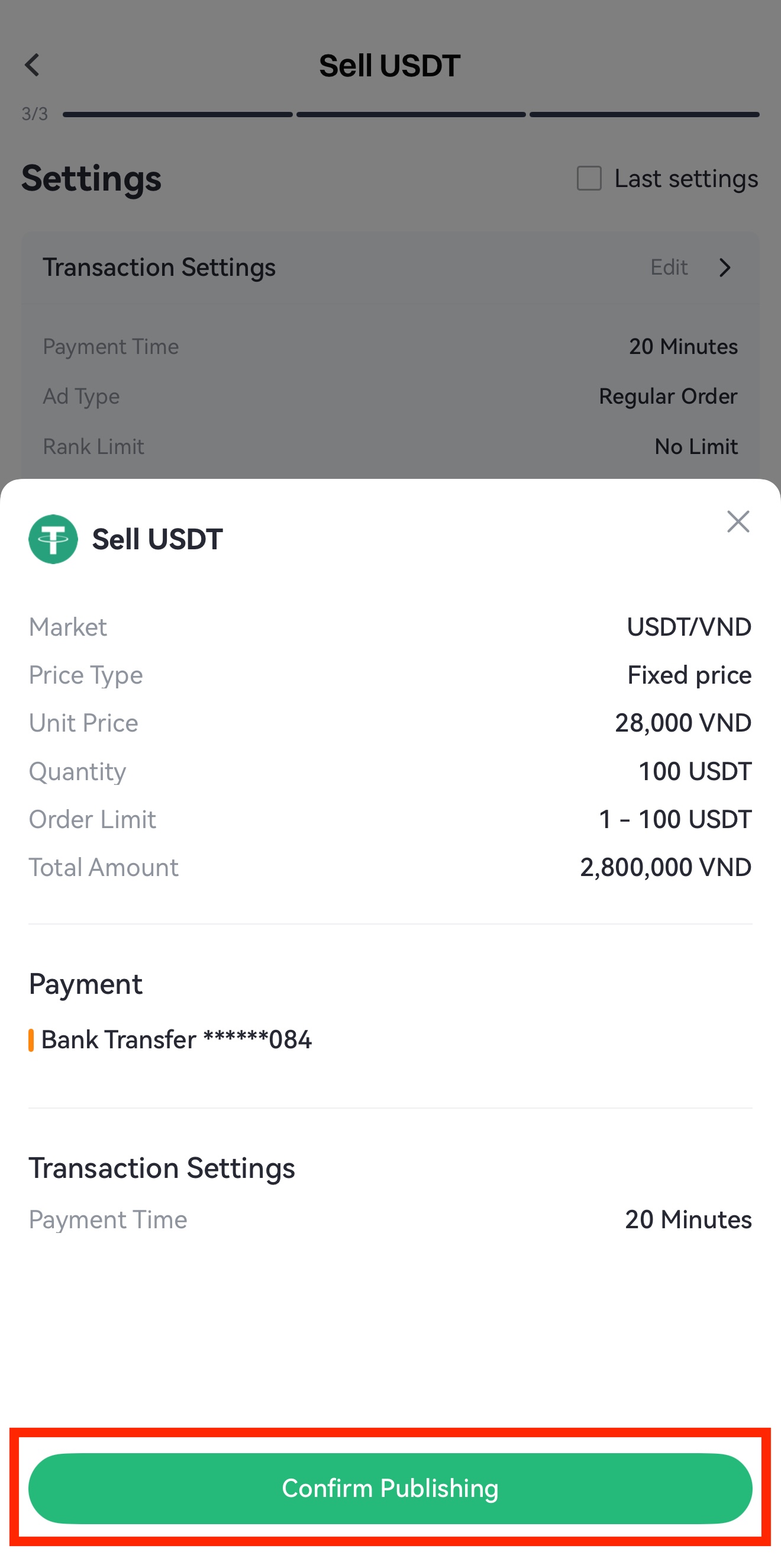
Step 3: On the confirmation page, select your payment method, review the details, and tap [Confirm Publishing].
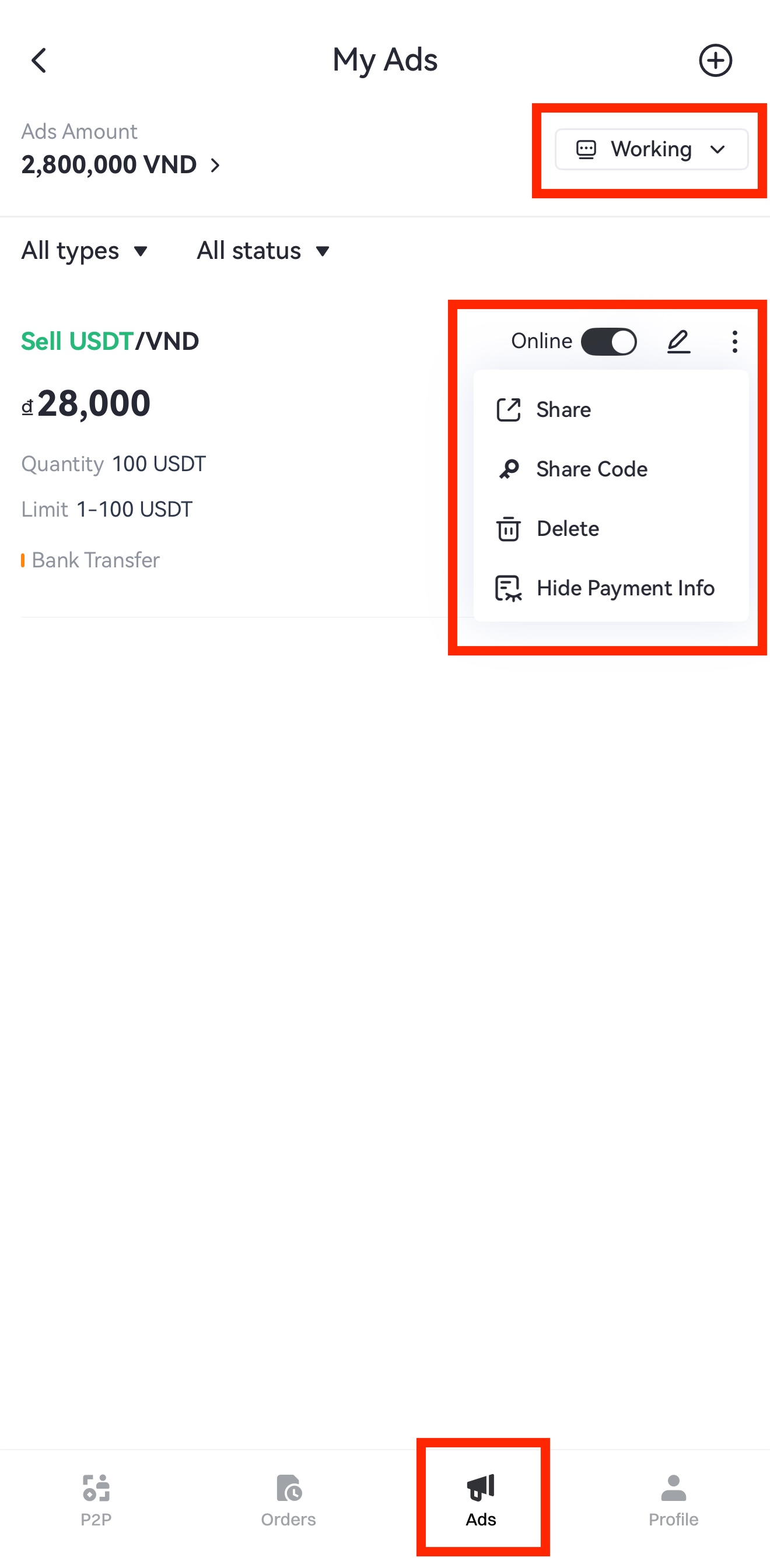
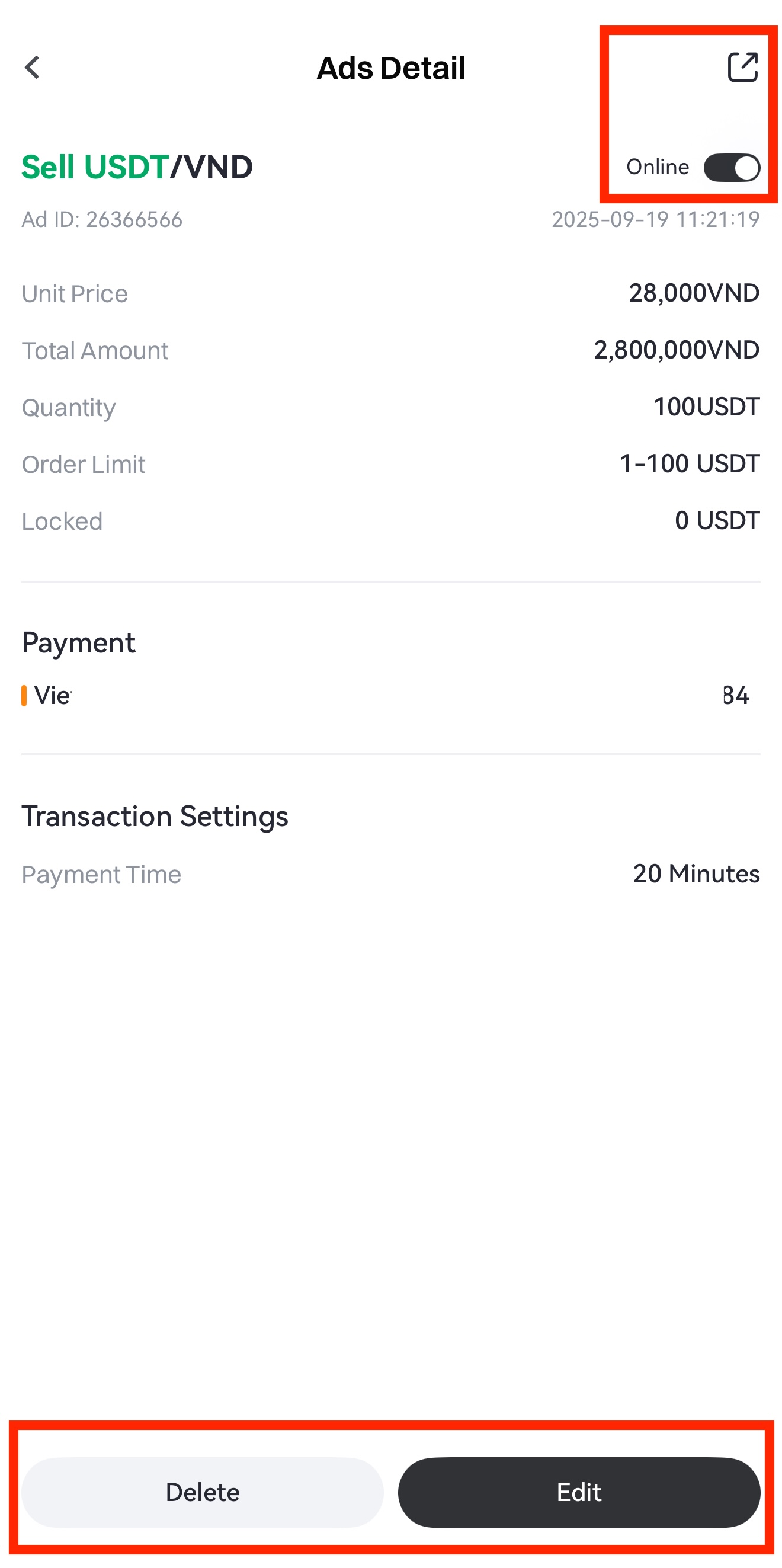
Step 4: Once the ad is successfully published, return to the [Ads] page to view it. You can also tap the ad to see more details:
-
Before the order is matched, you can tap [Cancel] or [Offline] to remove the ad.
-
To edit order details such as the price, tap [Edit].
-
To enable [Hide Payment Info], tap [More] - [Hide Payment].
-
To share the ad, tap [More] - [Share], save the image, and send it to others for QR code trading.
-
Ad page:
-
Order details page:
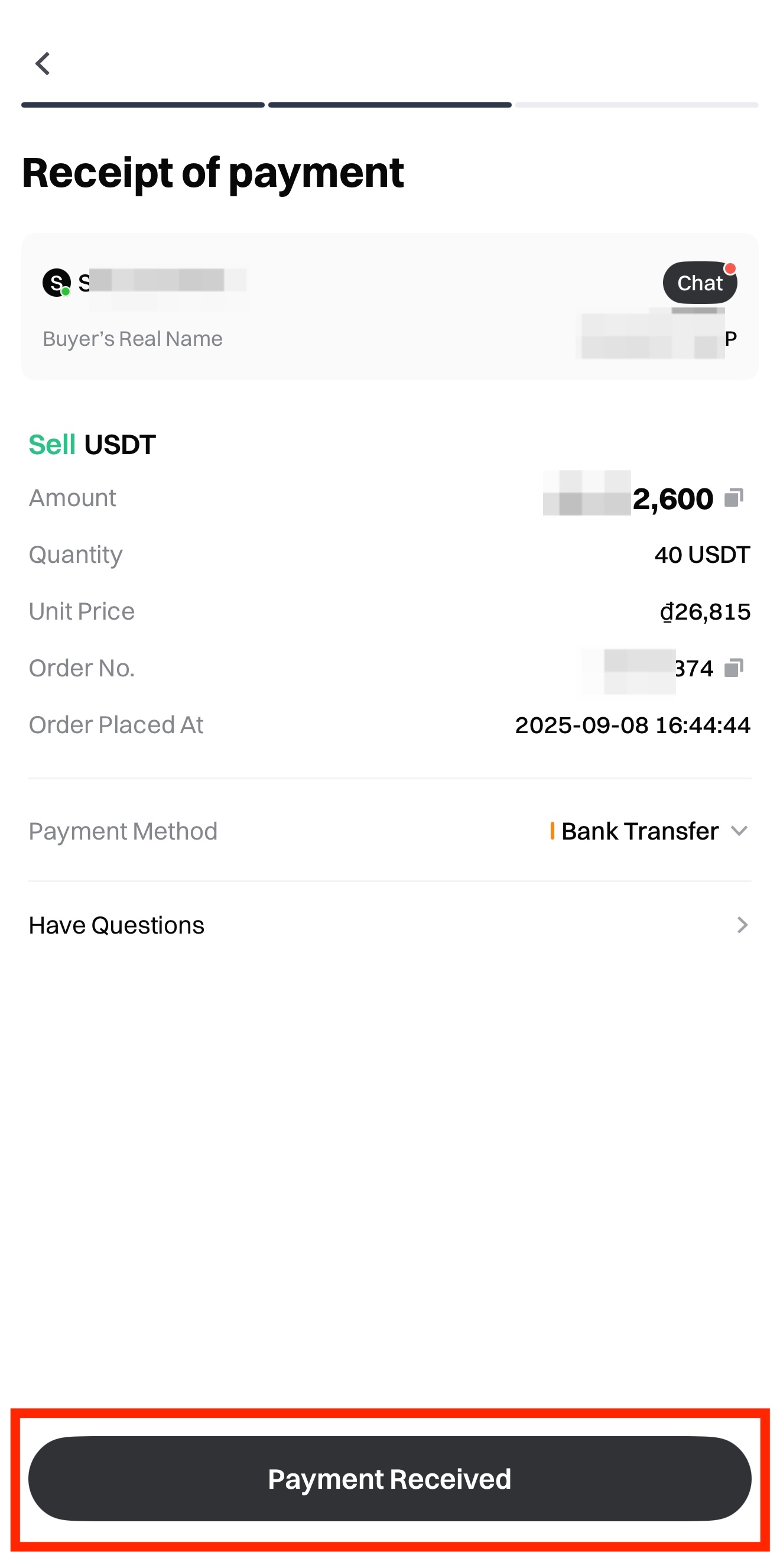
Step 5: Once the order is matched, check your bank account or the payment method you selected to confirm that the funds have been received and verify the buyer’s information. After confirming, tap [Confirm Receipt].
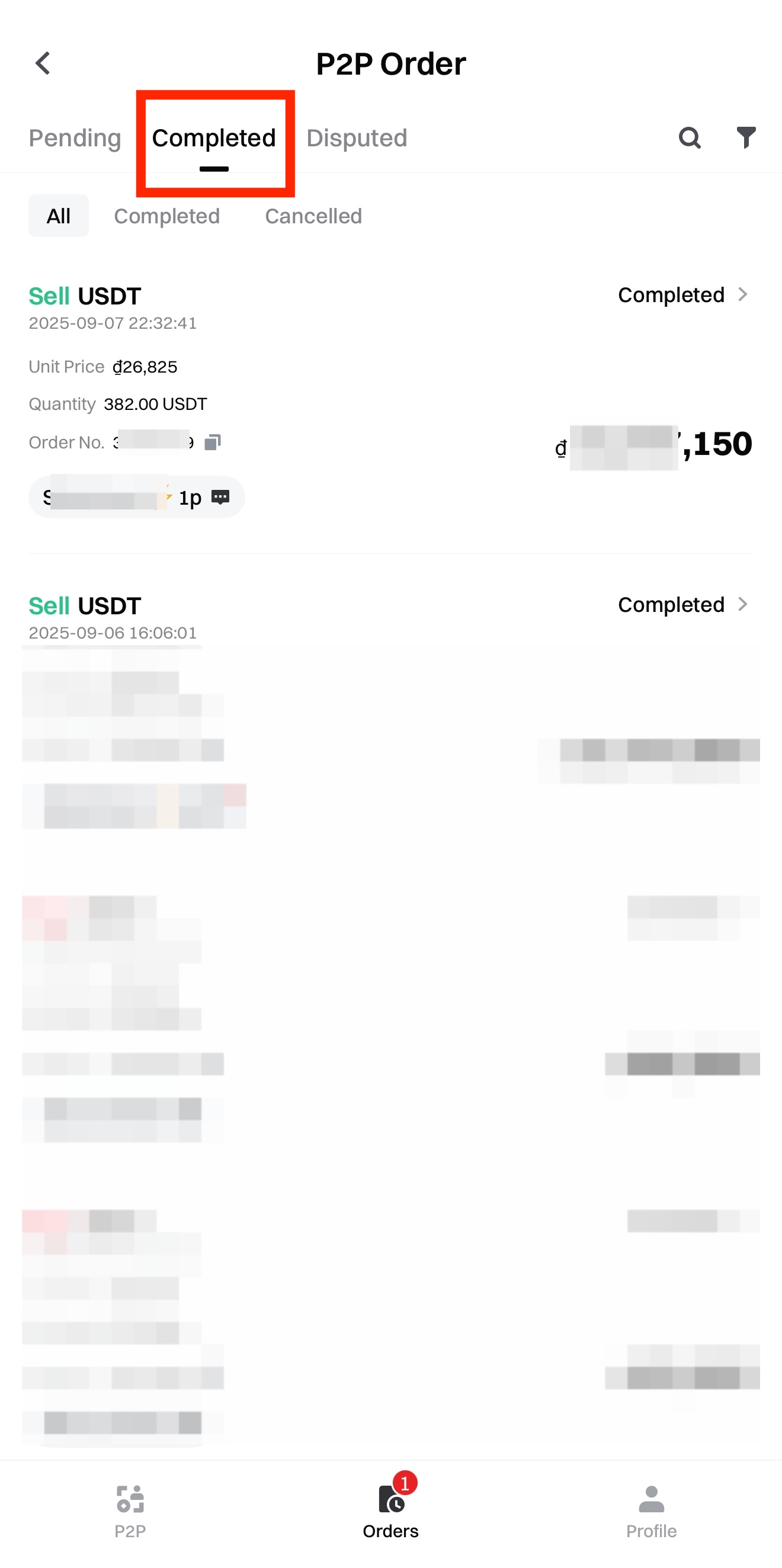
When the order is completed, you can view it under [Orders] - [Completed].
Disclaimer
The content provided herein is for reference and educational purposes only and does not constitute any financial, investment, trading, or legal advice, nor does it constitute an offer or solicitation to buy or sell any digital assets. Gate makes no express or implied representations or warranties regarding the accuracy, completeness, or timeliness of the information contained herein. Product features, interfaces, rules, and fee structures may be updated or adjusted at any time. Please refer to the latest announcements and the actual information displayed on the Gate platform for the most accurate details.
Digital asset investments involve significant risk, and prices may fluctuate substantially. You may lose the entire amount of your investment. Please make decisions cautiously based on your own financial situation and risk tolerance after fully understanding the associated risks. If necessary, you are advised to consult an independent professional financial or legal advisor.
For more information about potential risks, please refer to Gate's Risk Disclosure and User Agreement.
