


Universal Skills Installation Method (Recommended)
# Check if the package manager tool npx is installed. If not, refer to the appendix documentation.
npx -v
# 11.8.0 If a version number is returned, npx is already installed.

# Use the spacebar to select and install skills
npx skills add https://github.com/gate/gate-skills

# Specify installation of the gate-market skill
npx skills add https://github.com/gate/gate-skills --skill gate-market
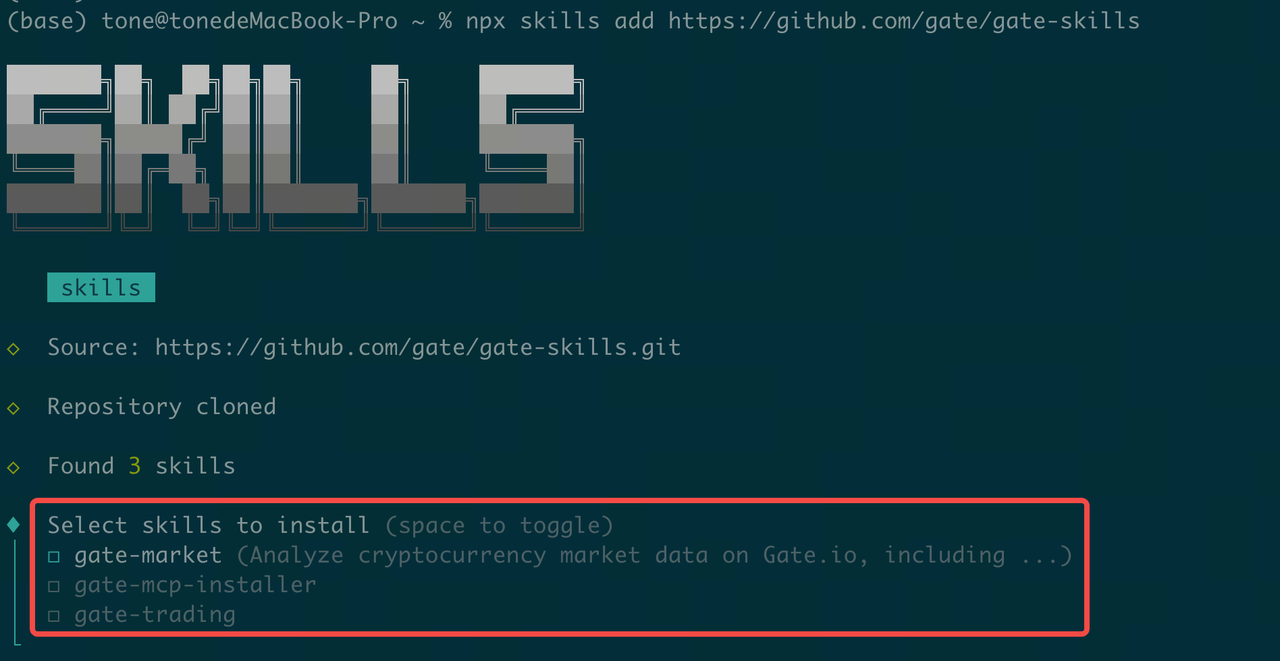
Use the spacebar and arrow keys to select the skills you want to install (recommended to select all).
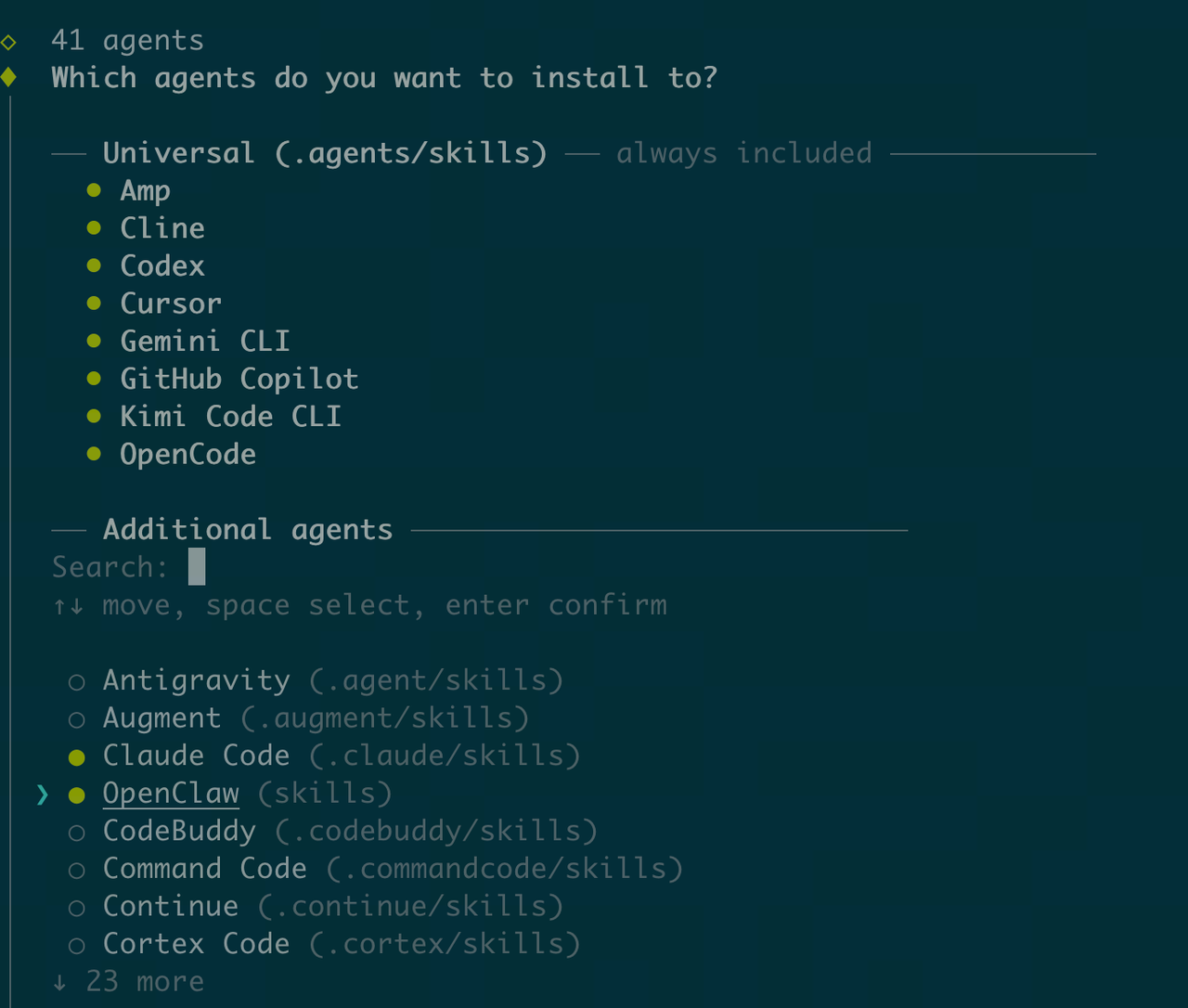
Installing Skills with Claude CLI
Option 1: Natural Language Installation (Recommended)
help me auto install Gate Skills:https://github.com/gate/gate-skills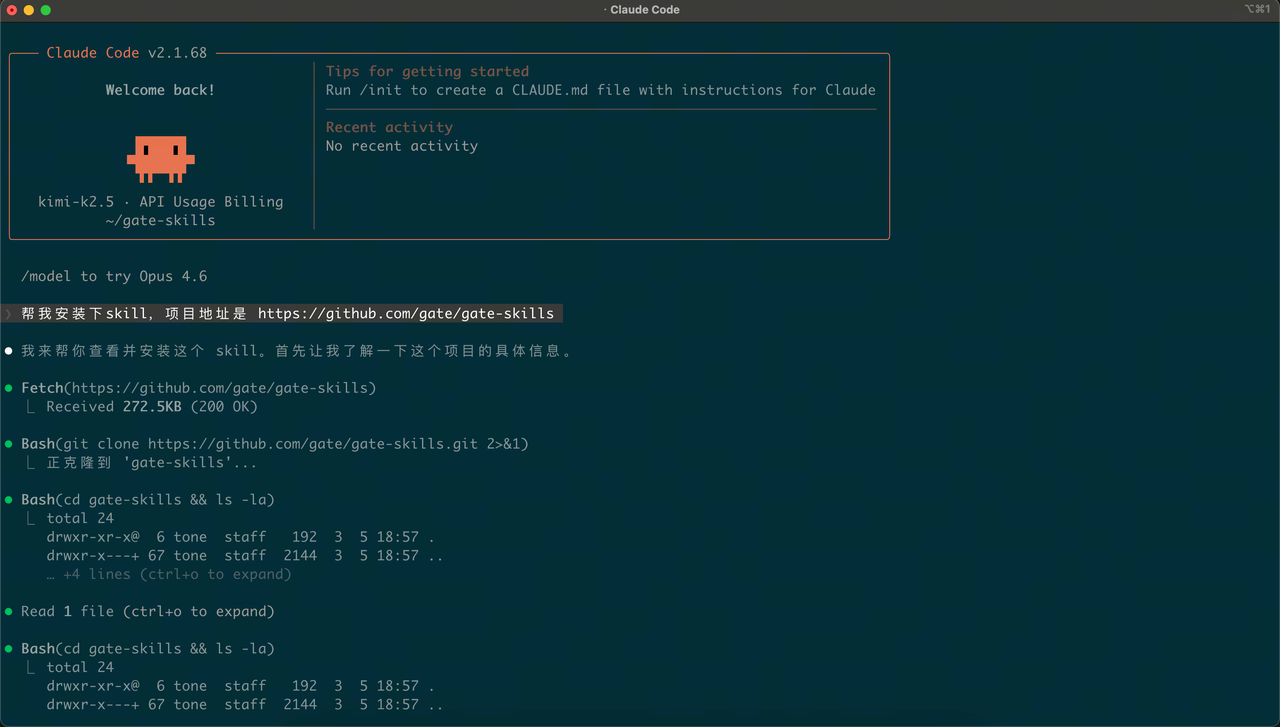
Option 2: Manual Installation
Step 1: Download the Skills package from GitHub: https://github.com/gate/gate-skills
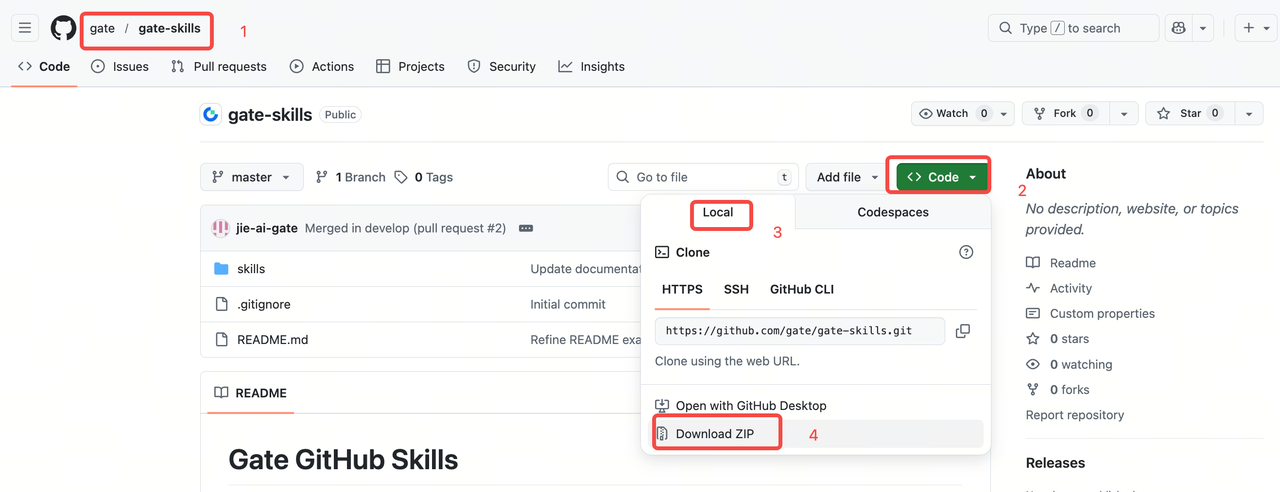
Step 2: Double-click to extract the compressed package, then copy it to the ~/.claude/skills/ directory
(1) Open the hidden folder directory
Go to your user directory, then press Command+Shift+Period [CMD+Shift+.]. (Tip: Using this shortcut again will re-hide the folder.)
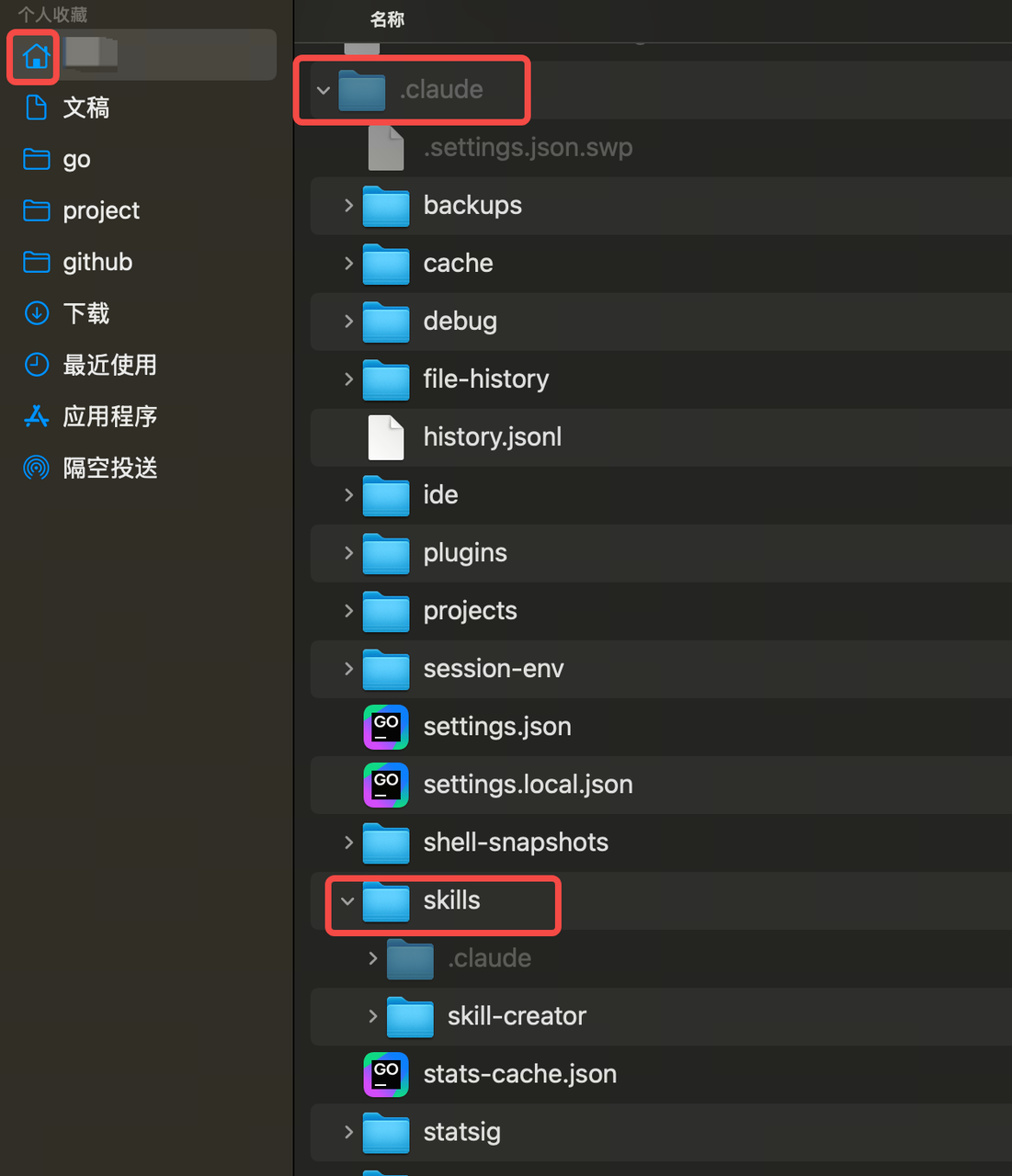
(2) Copy the folder into the directory
Locate the ~/.claude/skills directory, then copy the extracted package folder into it. Copy the subdirectory skills from gate-skills-master into the current directory.
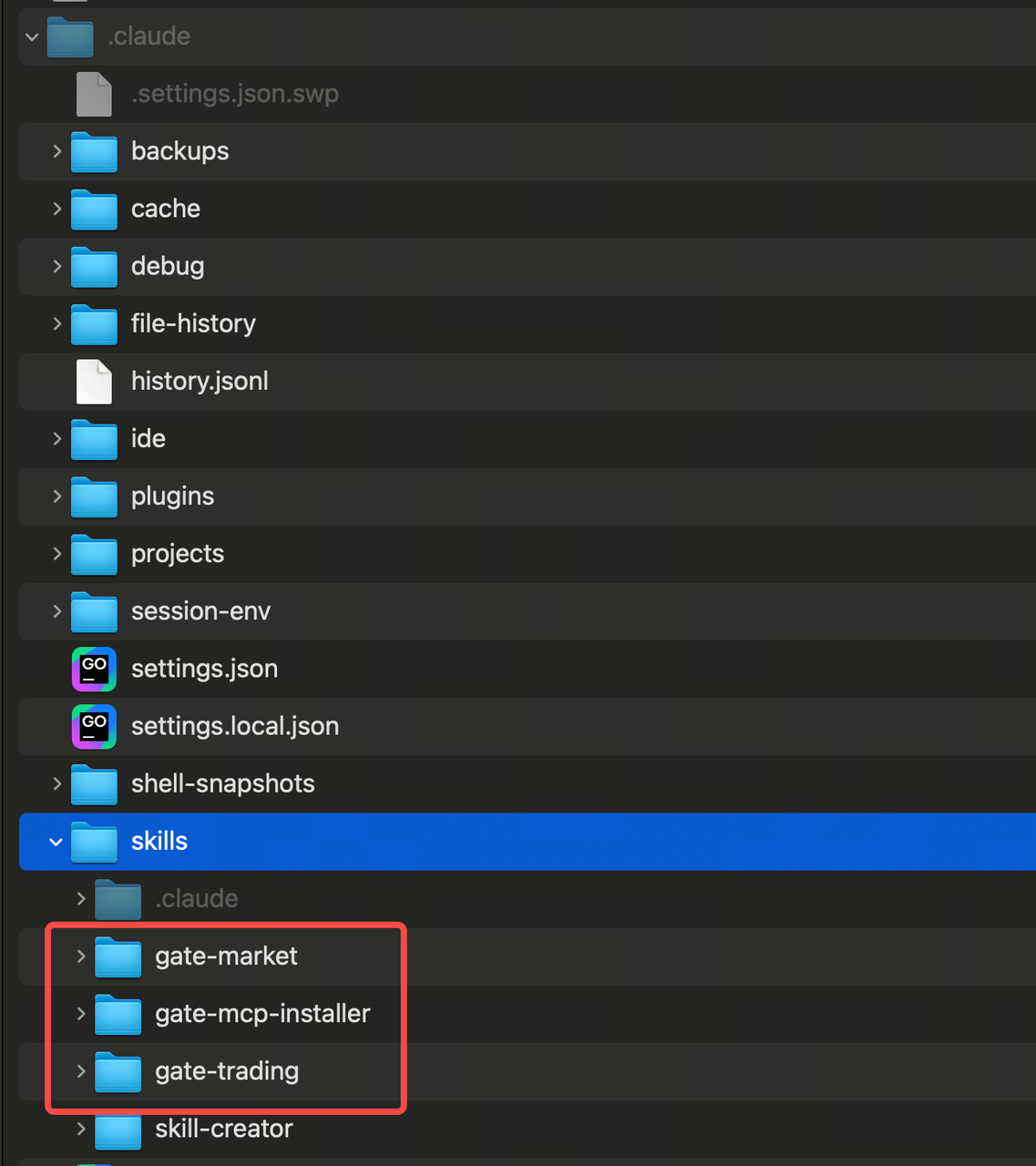
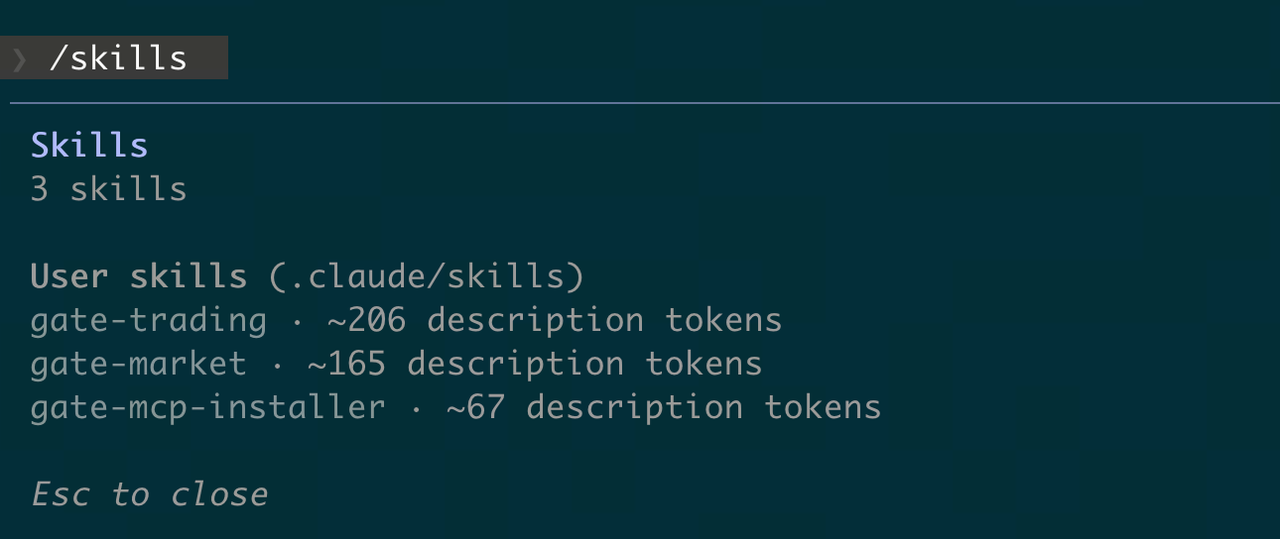
(3) Verify installation. In the Claude command line, enter /skills or ask Claude: how many skills have I installed?
Installing Skills with Codex CLI
Option 1: Natural Language Installation (Recommended)
help me auto install Gate Skills:https://github.com/gate/gate-skills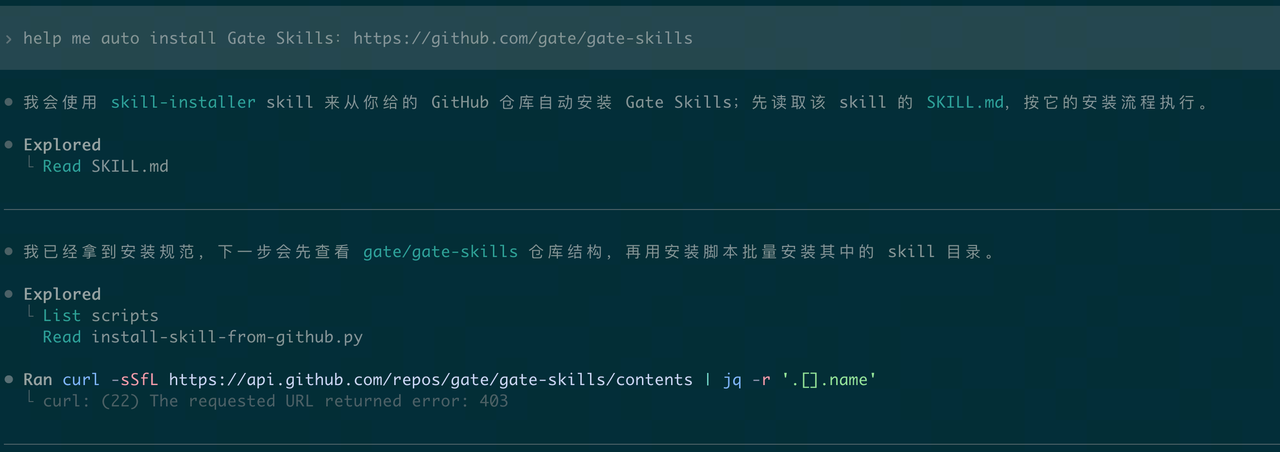
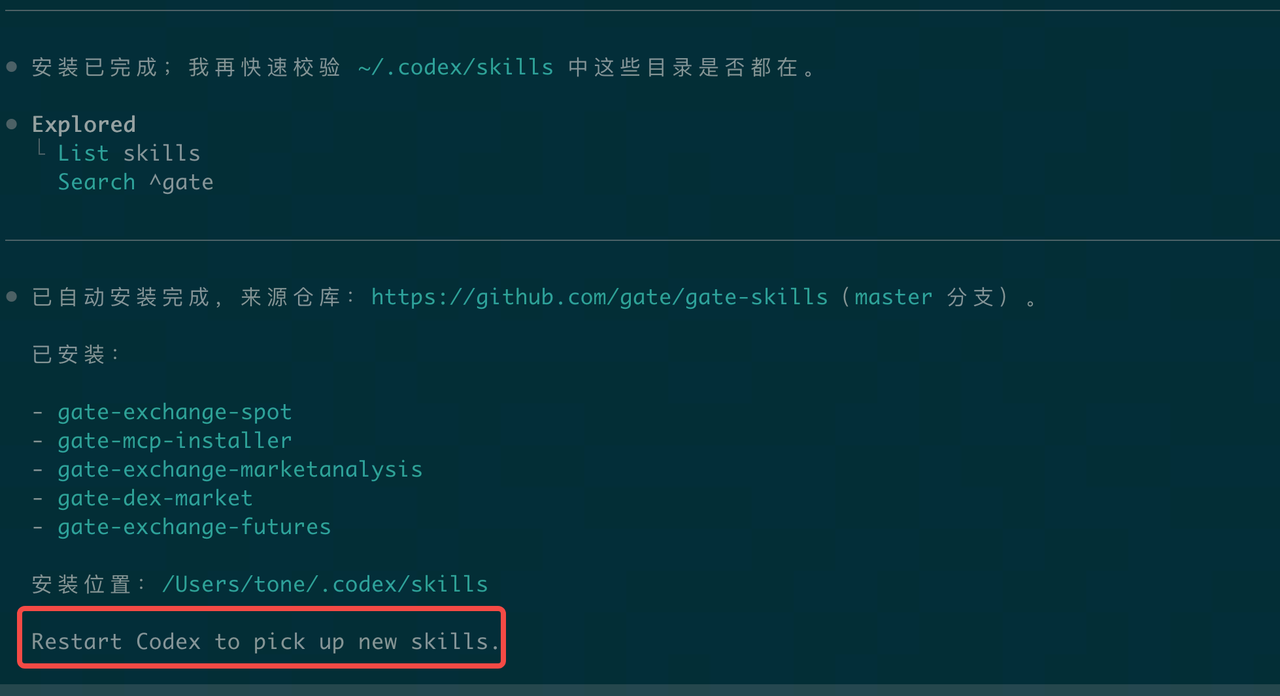
Takes effect after restarting Codex
Option 2: Terminal Installation
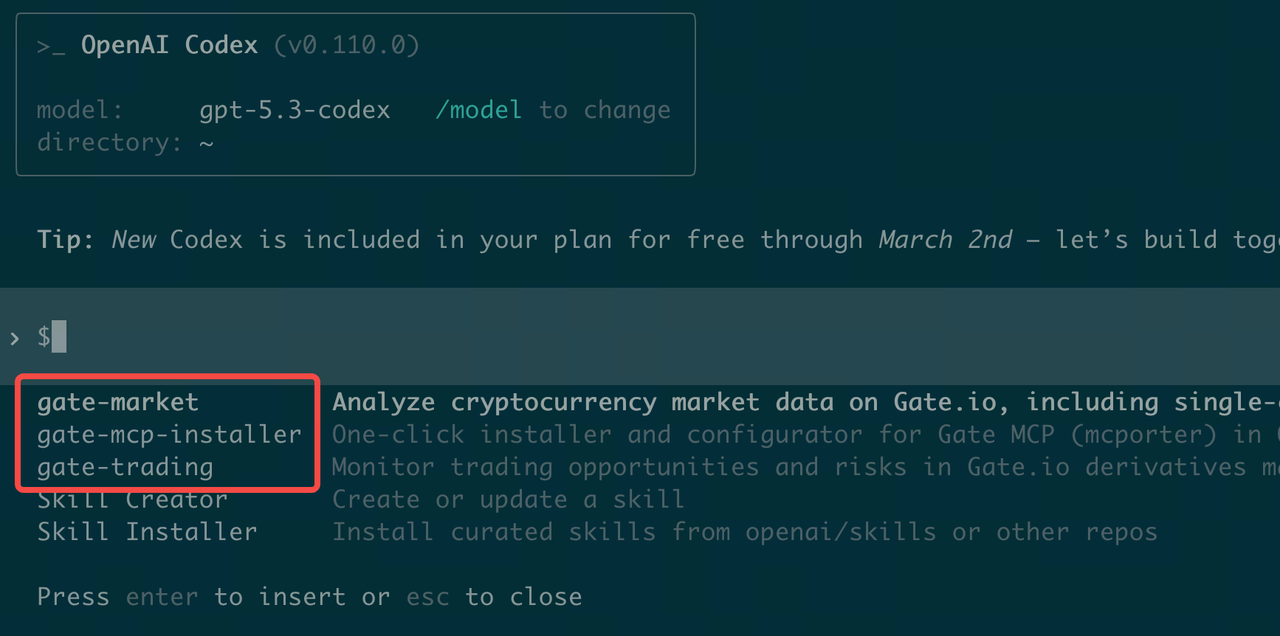
(1) In the terminal, enter /skills, select 1. List skills, choose Skill Installer, and enter https://github.com/gate/gate-skills
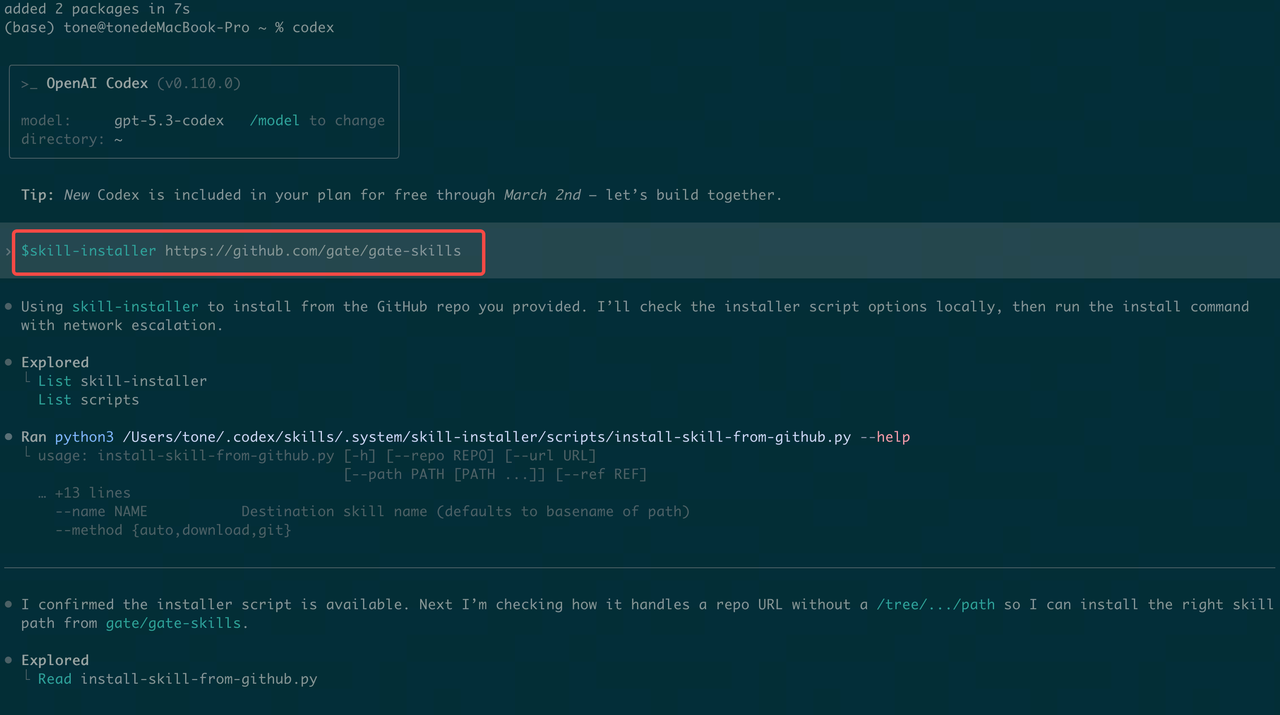
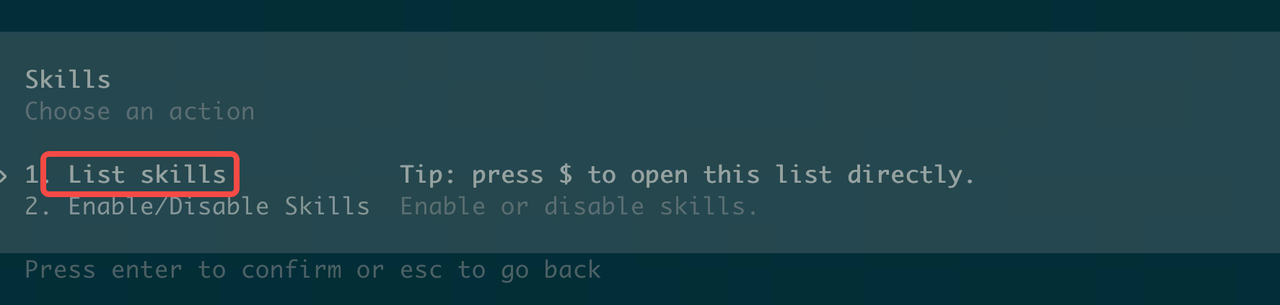
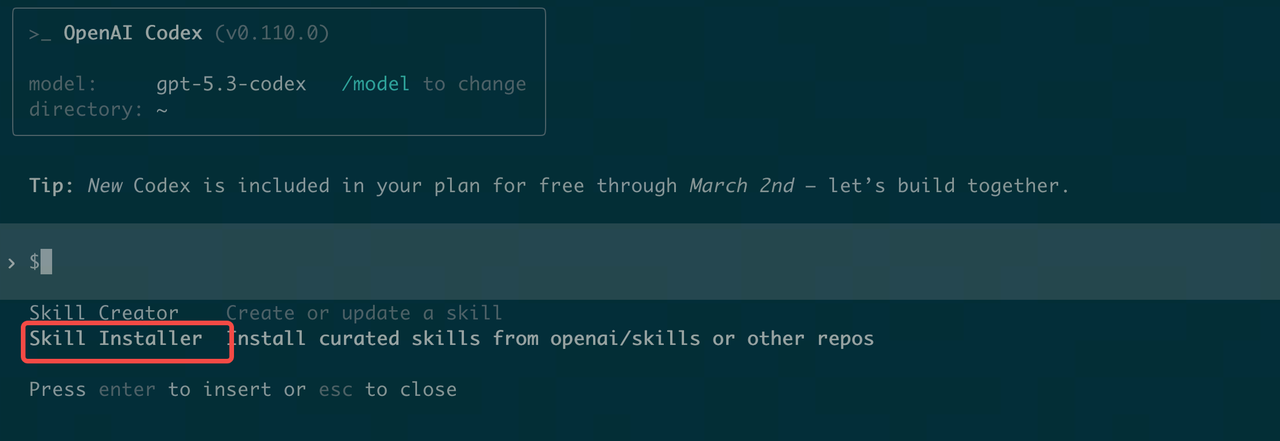
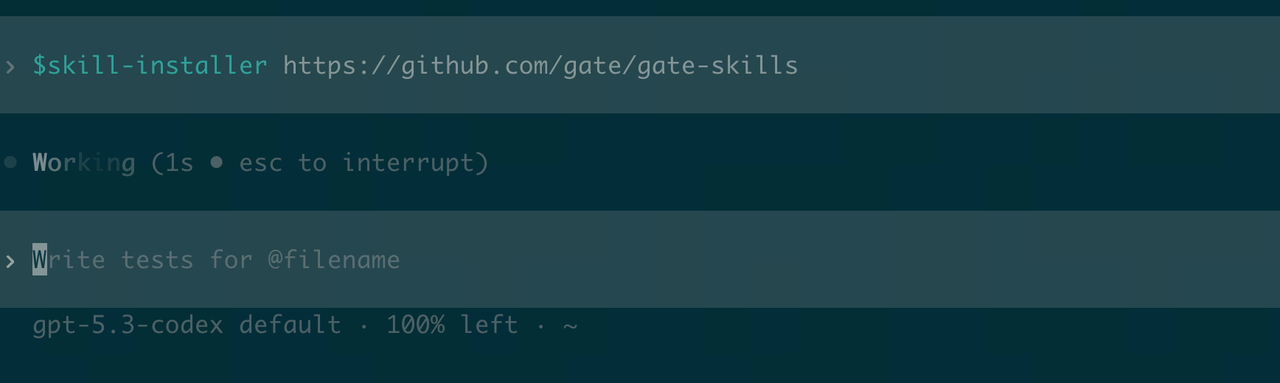
(2) Verify installation. Restart your terminal and enter /skills -> List Skills
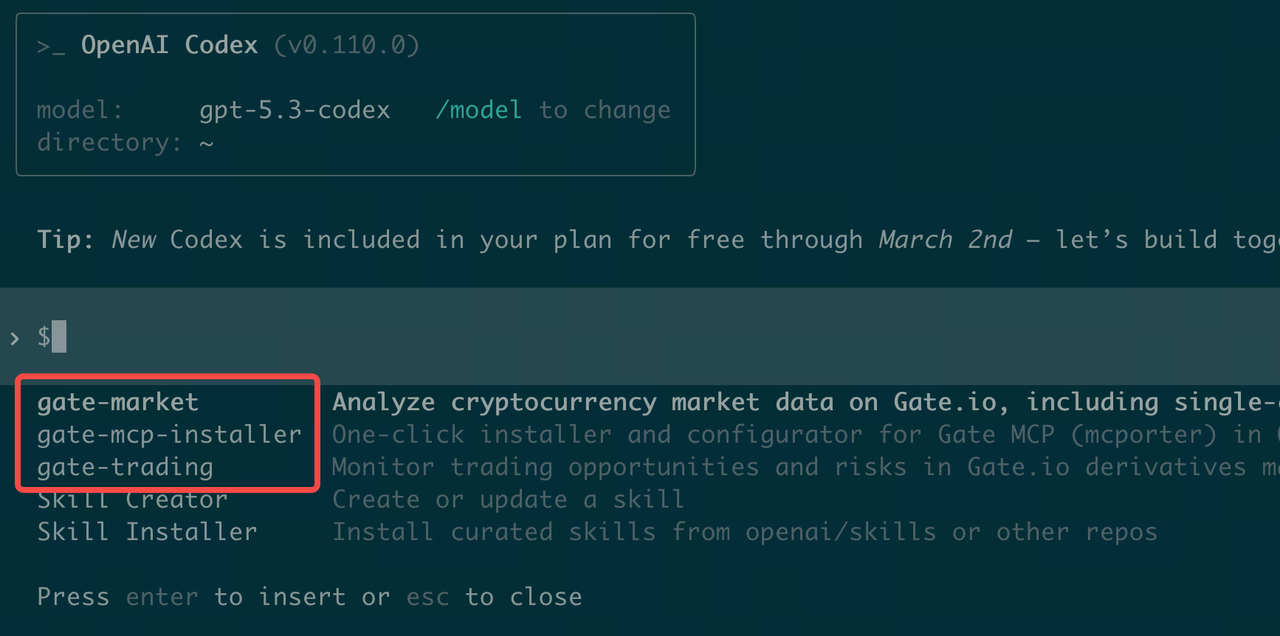
Option 3: Manual Installation
Step 1: Download the Skills package from GitHub: https://github.com/gate/gate-skills
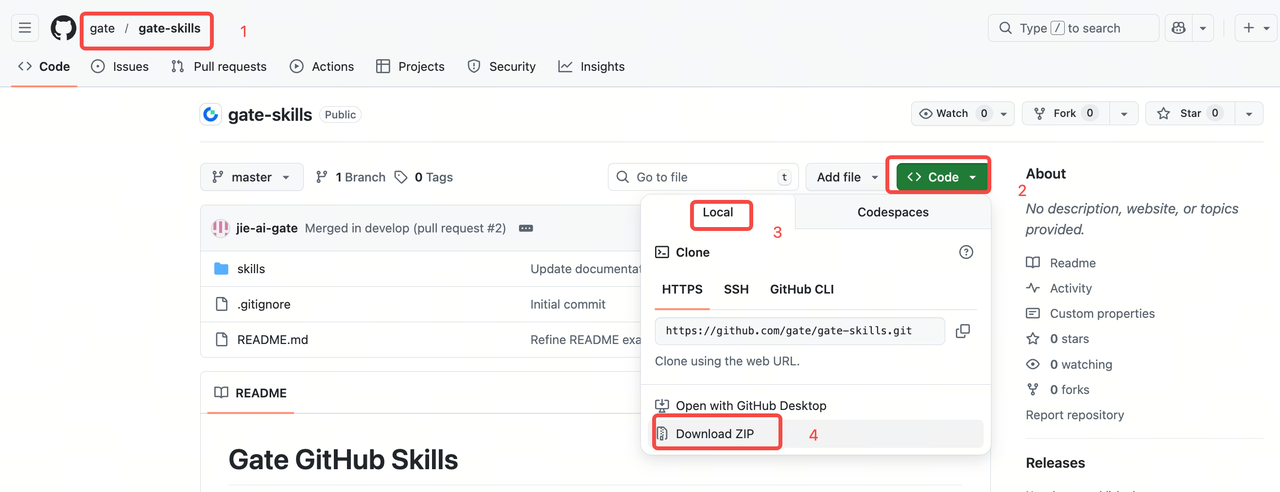
Step 2: Double-click to extract the compressed package, then copy it to the ~/ .codex/skills/ directory
(1) Open the hidden folder directory
Go to your user directory, then press Command+Shift+Period [CMD+Shift+.]. (Tip: Using this shortcut again will re-hide the folder.)
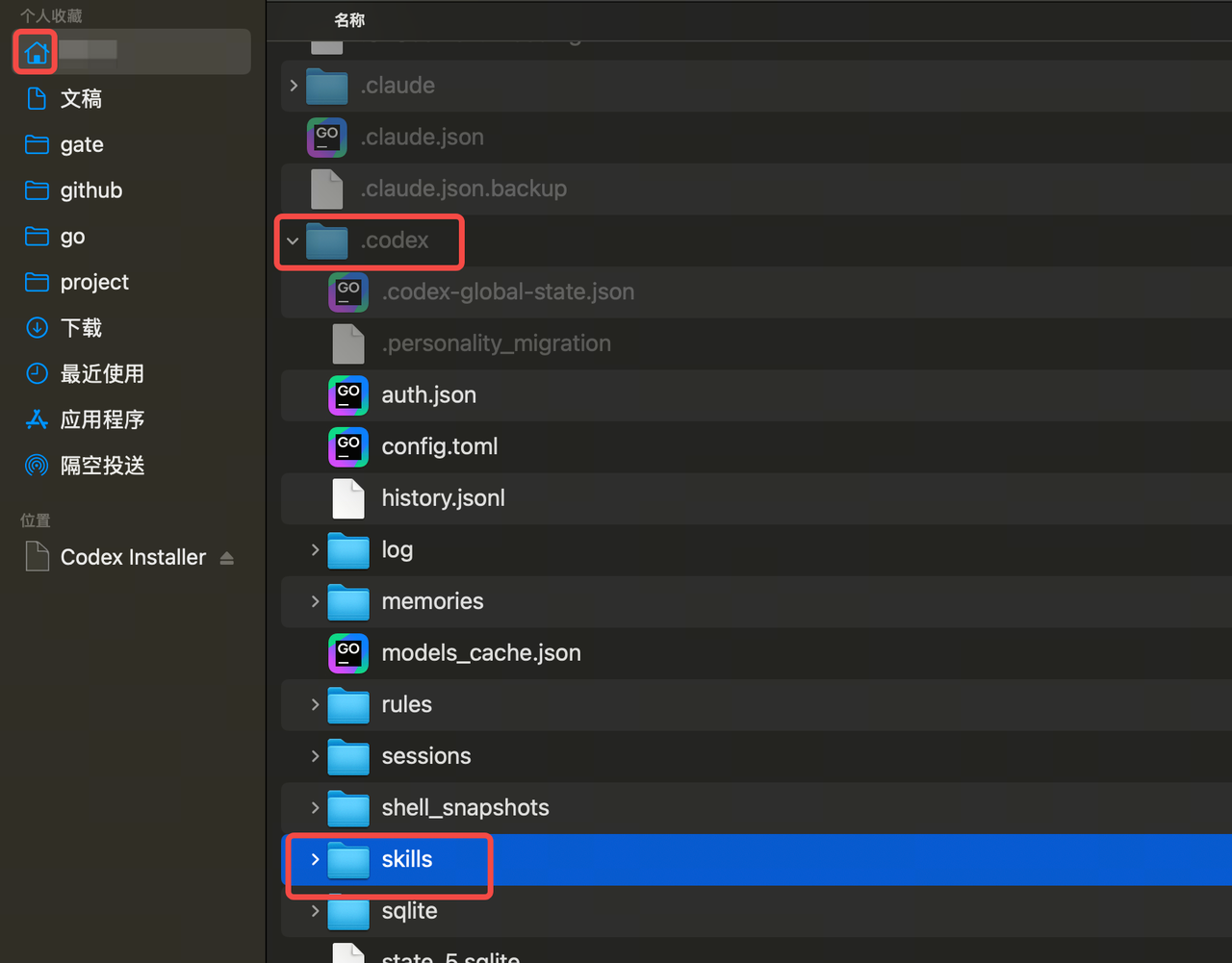
(2) Copy the folder into the specified directory
Find the ~/.codex/skills directory and copy all subdirectories from skills in gate-skills-master into the current directory.
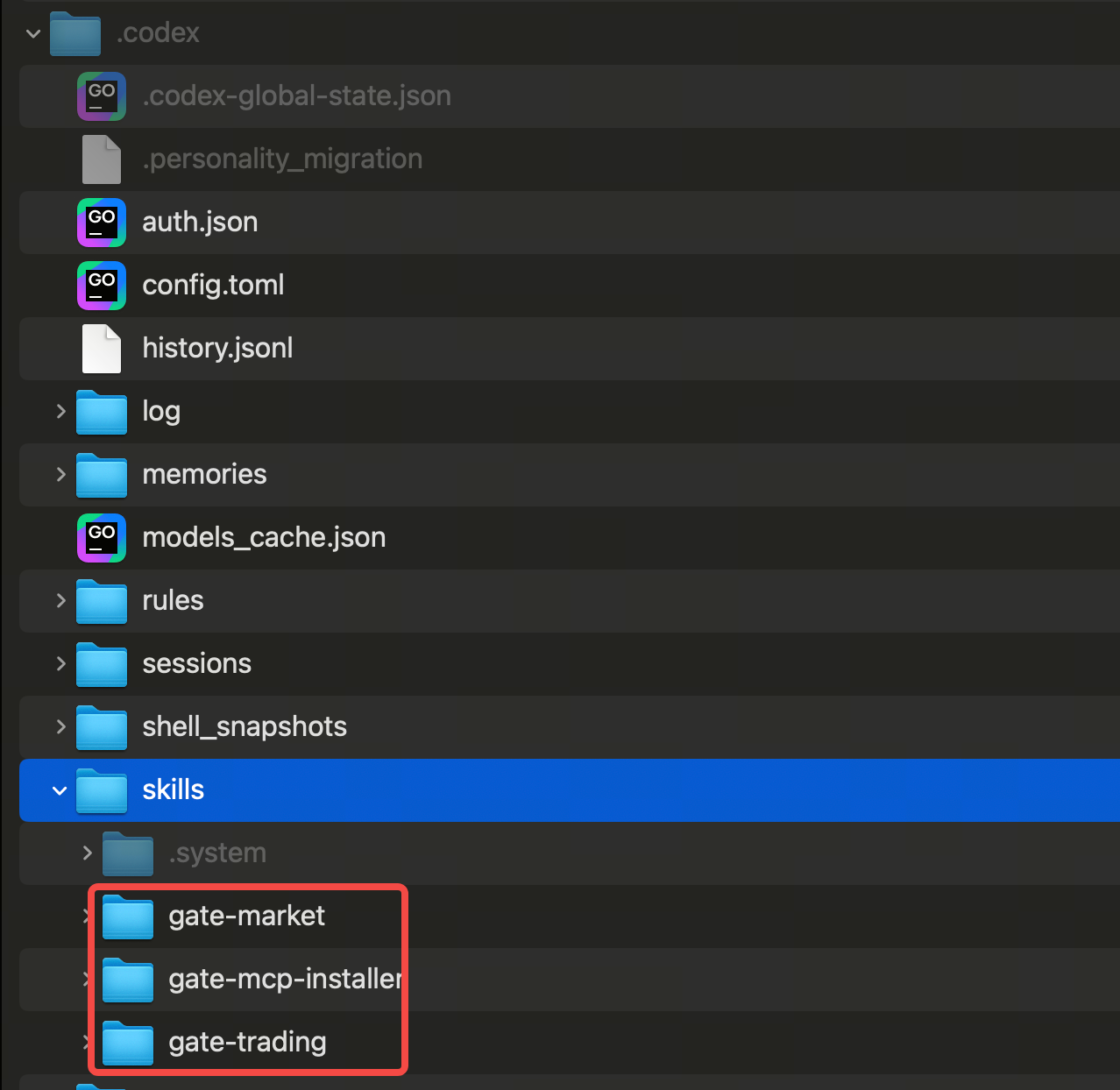
(3) Verify installation. Restart your terminal and enter /skills -> List Skills
Installing Skills with OpenClaw
Option 1: Direct Installation via Chat (Recommended)
In the OpenClaw chat interface (such as Telegram, Feishu, etc.), simply send the GitHub link to the AI assistant, for example:
help me auto install Gate Skills:https://github.com/gate/gate-skills
The assistant will automatically pull the code, configure the environment, and attempt to load the skill.
Option 2: Automatic Installation Using ClawHub (Recommended)
-
Official Marketplace (requires npx pre-installed; see appendix for npx installation)
npx clawhub@latest install gate-skills -
GitHub Repository
npx clawhub@latest add https://github.com/gate/gate-skills
Option 3: Manual Installation
Step 1: Download the Skills package from GitHub: https://github.com/gate/gate-skills
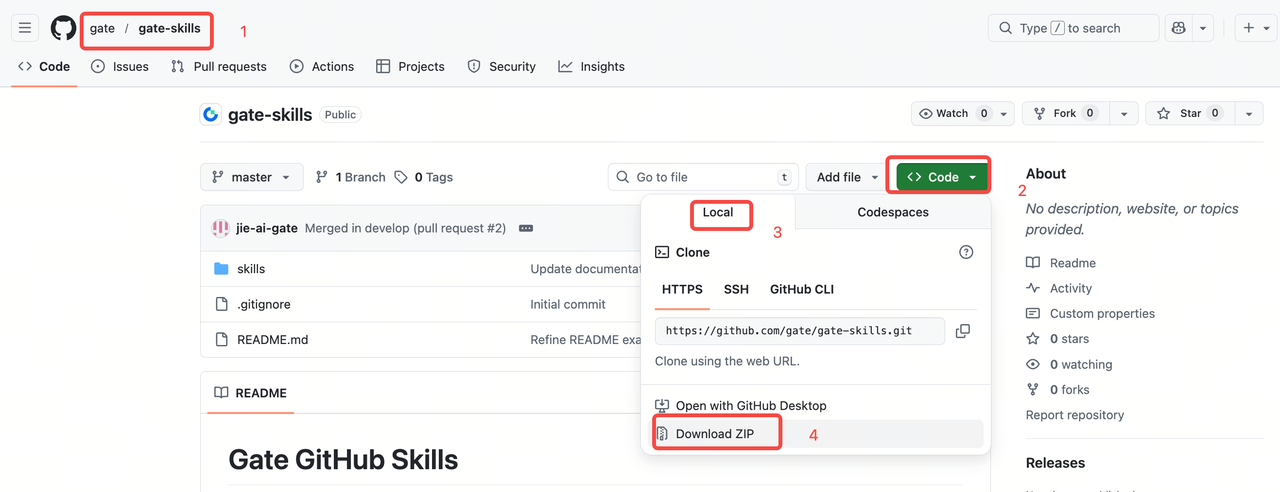
Step 2: Double-click to extract the compressed package, then copy it to the ~/ .openclaw/skills/ directory
(1) Open the hidden folder directory
Go to your user directory, then press Command+Shift+Period [CMD+Shift+.]. (Tip: Using this shortcut again will re-hide the folder.)
(2) Copy the folder into the specified directory
Find the ~/.openclaw/skills directory and copy all subdirectories from skills in gate-skills-master into the current directory.
Step 3: Restart OpenClaw Gateway
Option 4: Direct Installation via Chat
In the OpenClaw chat interface (such as Telegram, Feishu, etc.), simply send the GitHub link to the AI assistant, e.g., "Help me install this skill: https://github.com/gate/gate-skills"
The assistant will automatically pull the code, configure the environment, and attempt to load the skill.
Appendix: Installing the npx Package Manager Tool (Mac Version)
# Check if the package manager tool npx is installed. If restricted:
npx -v
# 11.8.0 If a version is returned, npx is installed

# If not installed (Mac computer)
# Option 1: Install with Homebrew
## Install Homebrew - Official (Recommended)
/bin/bash -c "$(curl -fsSL https://raw.githubusercontent.com/Homebrew/install/HEAD/install.sh)"
## Install Homebrew - China Mirror
/bin/zsh -c "$(curl -fsSL https://gitee.com/cunkai/HomebrewCN/raw/master/Homebrew.sh)"

## Verify Homebrew installation
brew --version
# Homebrew 5.0.16 If a version number is displayed, installation succeeded

## Install npx support
brew install node

# Enter npx -v to verify
npx -v

# Option 2: Official website installation
## Install nodejs by downloading the appropriate installer
https://nodejs.org/en/download
The content provided herein is for reference and educational purposes only and does not constitute any financial, investment, trading, or legal advice, nor does it constitute an offer or solicitation to buy or sell any digital assets. Gate makes no express or implied representations or warranties regarding the accuracy, completeness, or timeliness of the information contained herein. Product features, interfaces, rules, and fee structures may be updated or adjusted at any time. Please refer to the latest announcements and the actual information displayed on the Gate platform for the most accurate details.
Digital asset investments involve significant risk, and prices may fluctuate substantially. You may lose the entire amount of your investment. Please make decisions cautiously based on your own financial situation and risk tolerance after fully understanding the associated risks. If necessary, you are advised to consult an independent professional financial or legal advisor.
For more information about potential risks, please refer to Gate's Risk Disclosure and User Agreement.
